 Add to Chrome
Green terminal (CRT) theme for ChatGPT, Claude and Gemini
Green phosphor on black glass, scanlines and a soft bloom. ChatGPT, Claude and Gemini as a terminal on a beige monitor.
Free · chatgpt.com, claude.ai and gemini.google.com · Off in one key with Alt+Shift+T
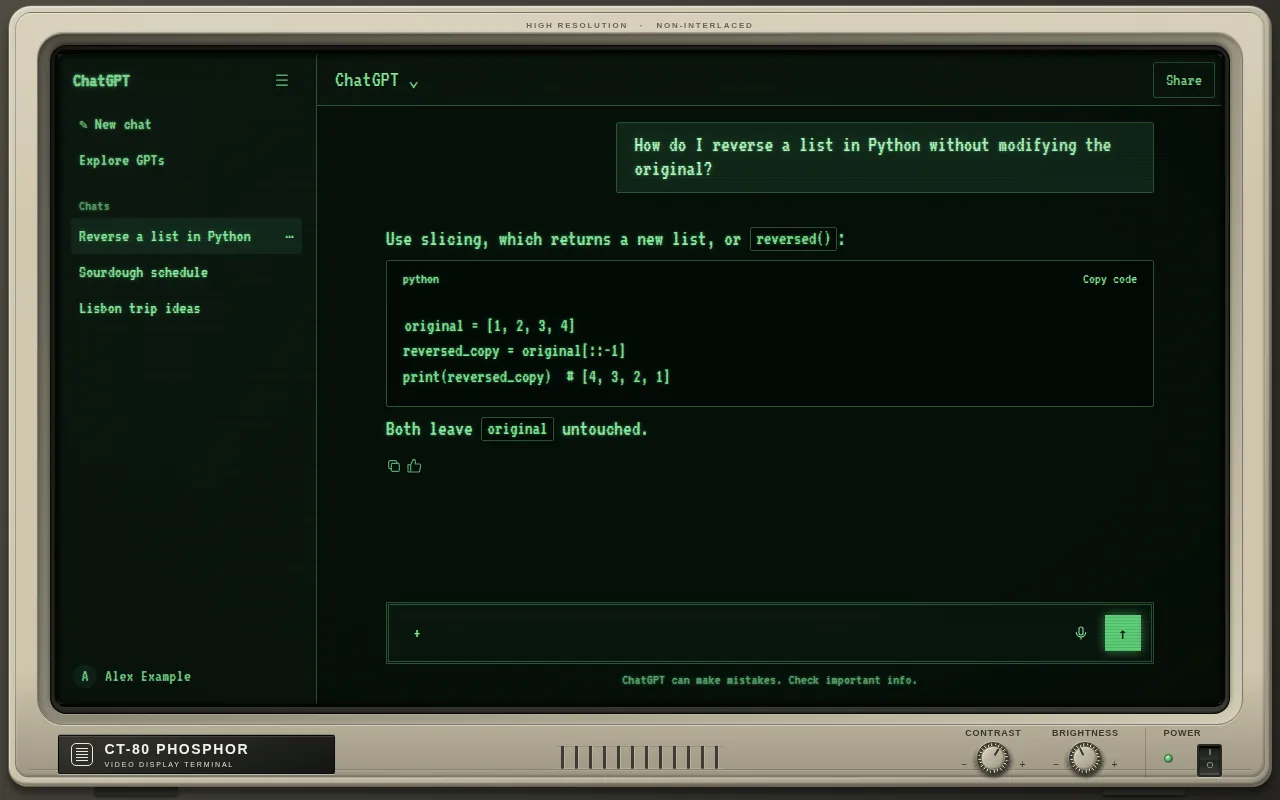
The Green Terminal look, 1970s–80s
Before colour screens, most computer terminals drew text in a single phosphor colour. Green P1 phosphor was the classic: bright, sharp and everywhere from mainframe terminals to early home computers.
The Green Terminal theme turns ChatGPT, Claude and Gemini into that screen: monospace type, green-on-black text with a gentle glow, scanlines and a CRT vignette. Text contrast is still checked to stay readable.
- Green phosphor text on near-black
- Scanlines and CRT glow
- Monospace type throughout
- Beige monitor frame around the app
What changes
- Base
- Dark
- Font
- VT323 terminal
- Code font
- VT323 terminal
- Corners
- 2px radius
- Frame
- terminal
- Effects
- scanlines, CRT glow
- Palette
Nothing is hidden, moved or covered. Frames are decoration around the app and never sit over the input, menus or send button.
Green Terminal on ChatGPT, Claude and Gemini
One theme, every app. Pick it once and it follows you across chatgpt.com, claude.ai and gemini.google.com.
How to use the Green Terminal theme
- 1
Install ChatTheme
Add the free ChatTheme extension to Chrome, Edge, Brave or Arc from the Chrome Web Store.
- 2
Open ChatGPT, Claude or Gemini
Go to chatgpt.com, claude.ai or gemini.google.com and click the ChatTheme icon in the toolbar to open the side panel.
- 3
Pick Green Terminal
Click Green Terminal in the Themes tab. It applies instantly without reloading. Press Alt+Shift+T any time to switch back to the stock look.
Want a variation? Open the Create tab and type something like “Green Terminal but pink” or “add stickers”. AI edits the theme live and you can undo any step.