 Add to Chrome
Classic Mac OS theme for ChatGPT, Claude and Gemini
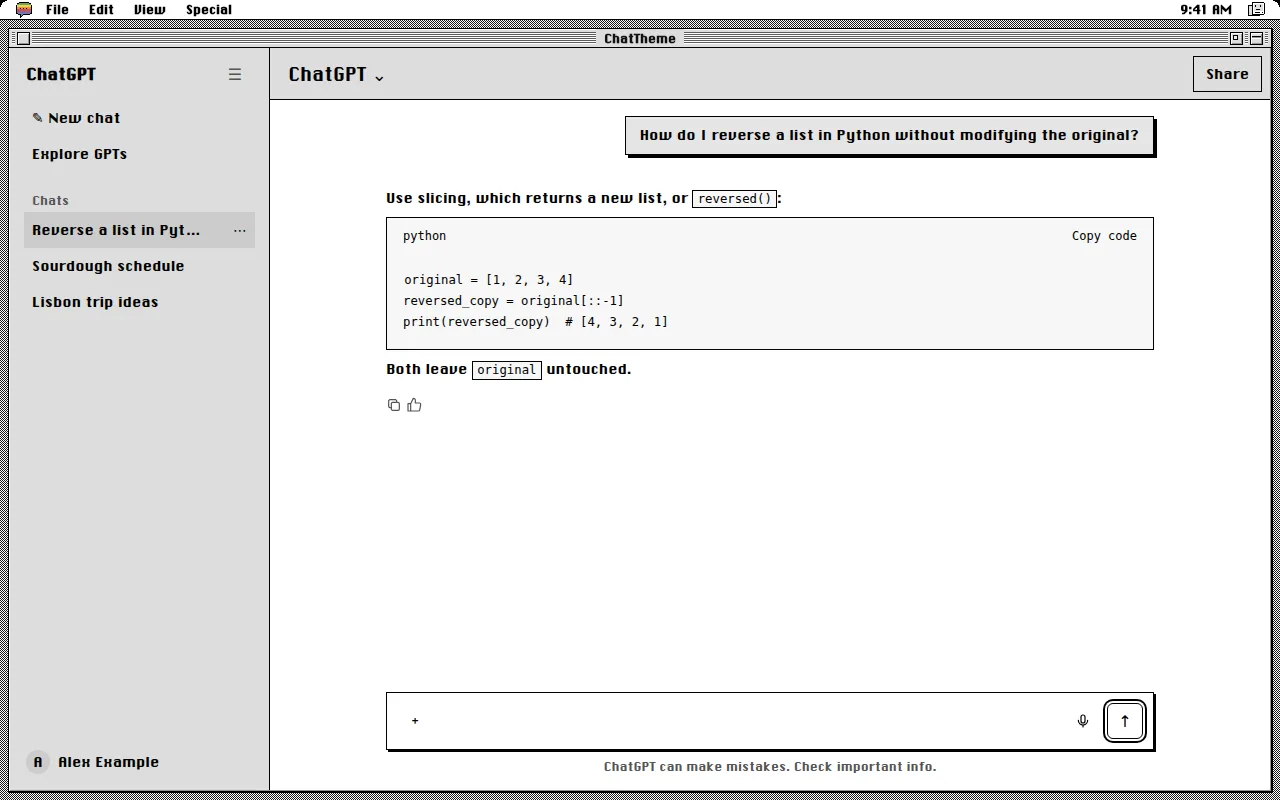
Platinum greys, a striped title bar, beveled window boxes and a crisp white document. The classic Mac desktop, holding your chat.
Free · chatgpt.com, claude.ai and gemini.google.com · Off in one key with Alt+Shift+T
The Classic Mac look, 1991–1999
From System 7 in 1991 to Mac OS 9 in 1999, the Macintosh desktop was a calm place: black-and-white clarity, then the Platinum appearance of Mac OS 8 with its soft grey bevels and horizontal title-bar stripes. Menus were set in Chicago, Susan Kare's bitmap typeface.
The Classic Mac theme puts ChatGPT, Claude or Gemini inside a Platinum window, with a menu bar across the top and your messages on a white page. It uses ChicagoFLF, a free remake of Chicago, bundled with the extension.
- Platinum grey window with six-line striped title bar
- Menu bar with a rainbow menu icon
- ChicagoFLF font (a free Chicago remake), bundled
- Crisp white document area for messages
What changes
- Base
- Light
- Font
- ChicagoFLF (Chicago remake)
- Code font
- Monospace
- Corners
- Square
- Frame
- mac classic
- Effects
- None
- Palette
Nothing is hidden, moved or covered. Frames are decoration around the app and never sit over the input, menus or send button.
Classic Mac on ChatGPT, Claude and Gemini
One theme, every app. Pick it once and it follows you across chatgpt.com, claude.ai and gemini.google.com.
How to use the Classic Mac theme
- 1
Install ChatTheme
Add the free ChatTheme extension to Chrome, Edge, Brave or Arc from the Chrome Web Store.
- 2
Open ChatGPT, Claude or Gemini
Go to chatgpt.com, claude.ai or gemini.google.com and click the ChatTheme icon in the toolbar to open the side panel.
- 3
Pick Classic Mac
Click Classic Mac in the Themes tab. It applies instantly without reloading. Press Alt+Shift+T any time to switch back to the stock look.
Want a variation? Open the Create tab and type something like “Classic Mac but pink” or “add stickers”. AI edits the theme live and you can undo any step.